954 lines
34 KiB
Plaintext
954 lines
34 KiB
Plaintext
# KiBot (formerly KiPlot)
|
|
|
|

|
|
|
|
[](https://github.com/INTI-CMNB/KiBot/actions)
|
|
[](https://coveralls.io/github/INTI-CMNB/KiBot?branch=master)
|
|
[](https://pypi.org/project/kibot/)
|
|
|
|
**New on 0.7.0**:
|
|
Now KiBot supports *variants*. To my knowledge this is the first tool to implement such a feature, in a transparent way and from schematic to PCB, for KiCad.
|
|
To learn more about KiBot variants visit the [example repo](https://inti-cmnb.github.io/kibot_variants_arduprog/).
|
|
|
|
## Index
|
|
|
|
* [Introduction](#introduction)
|
|
* [Configuration](#configuration)
|
|
* [The header](#the-header)
|
|
* [The *preflight* section](#the-preflight-section)
|
|
* [Supported *preflight* options](#supported-preflight-options)
|
|
* [Filtering DRC and ERC errors](#filtering-drc-and-erc-errors)
|
|
* [Default global options](#default-global-options)
|
|
* [Default *output* option](#default-output-option)
|
|
* [Default *variant* option](#default-variant-option)
|
|
* [Filtering KiBot warnings](#filtering-kibot-warnings)
|
|
* [Filters and variants](#filters-and-variants)
|
|
* [Supported filters](#supported-filters)
|
|
* [Examples for filters](#examples-for-filters)
|
|
* [Built-in filters](#built-in-filters)
|
|
* [DNF and DNC internal keys](#dnf-and-dnc-internal-keys)
|
|
* [The *outputs* section](#the-outputs-section)
|
|
* [Specifying the layers](#specifying-the-layers)
|
|
* [Supported outputs](#supported-outputs)
|
|
* [Filters and variants](#filters-and-variants)
|
|
* [Usage](#usage)
|
|
* [Installation](#installation)
|
|
* [Usage for CI/CD](#usage-for-cicd)
|
|
* [Github Actions](#usage-of-github-actions)
|
|
* [Notes about Gerber format](#notes-about-gerber-format)
|
|
* [Notes about the position file](#notes-about-the-position-file)
|
|
* [Credits](#credits)
|
|
|
|
## Introduction
|
|
|
|
KiBot is a program which helps you to generate the fabrication and
|
|
documentation files for your KiCad projects easily, repeatable, and
|
|
most of all, scriptably. This means you can use a Makefile to export
|
|
your KiCad PCBs just as needed.
|
|
|
|
For example, it's common that you might want for each board rev:
|
|
|
|
* Check ERC/DRC one last time (using [KiCad Automation Scripts](https://github.com/INTI-CMNB/kicad-automation-scripts/))
|
|
* Gerbers, drills and drill maps for a fab in their favourite format
|
|
* Fab docs for the assembler, including the BoM (Bill of Materials)
|
|
* Pick and place files
|
|
* PCB 3D model in STEP format
|
|
|
|
You want to do this in a one-touch way, and make sure everything you need to
|
|
do so it securely saved in version control, not on the back of an old
|
|
datasheet.
|
|
|
|
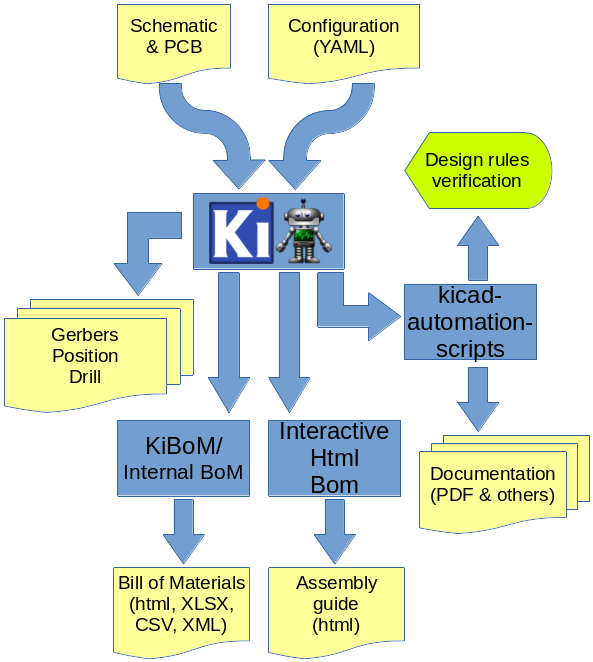
KiBot lets you do this. The following picture depicts the data flow:
|
|
|
|
|
|
|
|
**New on 0.7.0**:
|
|
Now KiBot supports *variants*. To my knowledge this is the first tool to implement such a feature, in a transparent way and from schematic to PCB, for KiCad.
|
|
To learn more about KiBot variants visit the [example repo](https://inti-cmnb.github.io/kibot_variants_arduprog/).
|
|
|
|
## Configuration
|
|
|
|
KiBot uses a configuration file where you can specify what *outputs* to
|
|
generate. By default you'll generate all of them, but you can specify which
|
|
ones from the command line.
|
|
|
|
The configuration file should be named using the **.kibot.yaml** suffix,
|
|
i.e. *my_project.kibot.yaml*. The format used is [YAML](https://yaml.org/).
|
|
This is basically a text file with some structure.
|
|
This file can be compressed using *gzip* file format.
|
|
|
|
If you never used YAML read the following [explanation](https://github.com/INTI-CMNB/KiBot/blob/master/docs/KiPlotYAML.md).
|
|
Note that the explanation could be useful even if you know YAML.
|
|
|
|
### The header
|
|
|
|
All configuration files must start with:
|
|
|
|
```yaml
|
|
kibot:
|
|
version: 1
|
|
```
|
|
|
|
This tells to KiBot that this file is using version 1 of the format.
|
|
|
|
### The *preflight* section
|
|
|
|
This section is used to specify tasks that will be executed before generating any output.
|
|
|
|
#### @preflight@
|
|
|
|
Here is an example of a *preflight* section:
|
|
|
|
```yaml
|
|
preflight:
|
|
run_erc: true
|
|
update_xml: true
|
|
run_drc: true
|
|
check_zone_fills: true
|
|
ignore_unconnected: false
|
|
```
|
|
|
|
#### Filtering DRC and ERC errors
|
|
|
|
Sometimes KiCad reports DRC or ERC errors that you can't get rid off.
|
|
This could be just because you are part of a team including lazzy people that doesn't want to take the extra effort to solve
|
|
some errors that aren't in fact errors, just small violations made on purpose. In this case you could exclude some known errors.
|
|
|
|
For this you must declare `filters` entry in the `preflight` section. Then you can add as many `filter` entries as you want.
|
|
Each filter entry has an optional description and defines to which error type is applied (`number`) and a regular expression
|
|
that the error must match to be ignored (`regex`). Like this:
|
|
|
|
```yaml
|
|
filters:
|
|
- filter: 'Optional filter description'
|
|
error: 'Error_type'
|
|
regex: 'Expression to match'
|
|
```
|
|
|
|
Here is a KiCad 5 example, suppose you are getting the following errors:
|
|
|
|
```
|
|
** Found 1 DRC errors **
|
|
ErrType(4): Track too close to pad
|
|
@(177.185 mm, 78.315 mm): Track 1.000 mm [Net-(C3-Pad1)] on F.Cu, length: 1.591 mm
|
|
@(177.185 mm, 80.715 mm): Pad 2 of C3 on F.Cu and others
|
|
|
|
** Found 1 unconnected pads **
|
|
ErrType(2): Unconnected items
|
|
@(177.185 mm, 73.965 mm): Pad 2 of C4 on F.Cu and others
|
|
@(177.185 mm, 80.715 mm): Pad 2 of C3 on F.Cu and others
|
|
```
|
|
|
|
And you want to ignore them. You can add the following filters:
|
|
|
|
```yaml
|
|
filters:
|
|
- filter: 'Ignore C3 pad 2 too close to anything'
|
|
error: '4'
|
|
regex: 'Pad 2 of C3'
|
|
- filter: 'Ignore unconnected pad 2 of C4'
|
|
error: '2'
|
|
regex: 'Pad 2 of C4'
|
|
```
|
|
|
|
If you need to match text from two different lines in the error message try using `(?s)TEXT(.*)TEXT_IN_OTHER_LINE`.
|
|
|
|
If you have two or more different options for a text to match try using `(OPTION1|OPTION2)`.
|
|
|
|
A complete Python regular expressions explanation is out the scope of this manual. For a complete reference consult the [Python manual](https://docs.python.org/3/library/re.html).
|
|
|
|
KiCad 6 uses strings to differentiate errors, use them for the `error` field. To keep compatibility you can use the `number` or `error_number` options for KiCad 5.
|
|
|
|
**Important note**: this will create a file named *kibot_errors.filter* in the output directory.
|
|
|
|
|
|
### Default global options
|
|
|
|
The section `global` contains default global options that affects all the outputs.
|
|
Currently only one option is supported.
|
|
|
|
#### Default *output* option
|
|
|
|
This option controls the default file name pattern used by all the outputs. This makes all the file names coherent.
|
|
You can always choose the file name for a particular output.
|
|
|
|
The pattern uses the following expansions:
|
|
|
|
- **%f** original pcb/sch file name without extension.
|
|
- **%F** original pcb/sch file name without extension. Including the directory part of the name.
|
|
- **%p** pcb/sch title from pcb metadata.
|
|
- **%c** company from pcb/sch metadata.
|
|
- **%r** revision from pcb/sch metadata.
|
|
- **%d** pcb/sch date from metadata if available, file modification date otherwise.
|
|
- **%D** date the script was started.
|
|
- **%T** time the script was started.
|
|
- **%i** a contextual ID, depends on the output type.
|
|
- **%x** a suitable extension for the output type.
|
|
|
|
They are compatible with the ones used by IBoM.
|
|
The default value for `global.output` is `%f-%i.%x`.
|
|
If you want to include the revision you could add the following definition:
|
|
|
|
```yaml
|
|
global:
|
|
output: '%f_rev_%r-%i.%x'
|
|
```
|
|
|
|
#### Default *variant* option
|
|
|
|
This option controls the default variant applied to all the outputs. Example:
|
|
|
|
```yaml
|
|
global:
|
|
variant: 'production'
|
|
```
|
|
|
|
#### Filtering KiBot warnings
|
|
|
|
KiBot warnings are marked with `(Wn)` where *n* is the warning id.
|
|
|
|
Some warnings are just recommendations and you could want to avoid them to focus on details that are more relevant to your project.
|
|
In this case you can define filters in a similar way used to [filter DRC/ERC errors](#filtering-drc-and-erc-errors).
|
|
|
|
As an example, if you have the following warning:
|
|
|
|
```
|
|
WARNING:(W43) Missing component `l1:FooBar`
|
|
```
|
|
|
|
You can create the following filter to remove it:
|
|
|
|
```yaml
|
|
global:
|
|
filters:
|
|
- number: 43
|
|
regex: 'FooBar'
|
|
```
|
|
|
|
### Filters and variants
|
|
|
|
The filters and variants are mechanism used to modify the circuit components.
|
|
Both concepts are closely related. In fact variants can use filters.
|
|
|
|
The current implementation of the filters allow to exclude components from some of the processing stages. The most common use is to exclude them from some output.
|
|
In the future more advanced filters will allow modification of component details.
|
|
|
|
Variants are currently used to create *assembly variants*. This concept is used to manufature one PCB used for various products.
|
|
You can learn more about KiBot variants on the following [example repo](https://inti-cmnb.github.io/kibot_variants_arduprog/).
|
|
|
|
As mentioned above the current use of filters is to mark some components. Mainly to exclude them, but also to mark them as special.
|
|
This is the case of *do not change* components in the BoM.
|
|
|
|
Filters and variants are defined in separated sections. A filter section looks like this:
|
|
|
|
```yaml
|
|
filters:
|
|
- name: 'a_short_name'
|
|
type: 'generic'
|
|
comment: 'A description'
|
|
# Filter options
|
|
```
|
|
|
|
Currently the only type available is `generic`.
|
|
|
|
#### @filters@
|
|
|
|
|
|
#### Examples for filters
|
|
|
|
The [tests/yaml_samples](https://github.com/INTI-CMNB/KiBot/tree/master/tests/yaml_samples) directory contains all the regression tests. Many of them test the filters functionality.
|
|
|
|
- [int_bom_exclude_any.kibot.yaml](https://github.com/INTI-CMNB/KiBot/tree/master/tests/yaml_samples/int_bom_exclude_any.kibot.yaml): Shows how to use regular expressions to match fields and exclude components. Is the more powerful filter mechanism.
|
|
- [int_bom_fil_1.kibot.yaml](https://github.com/INTI-CMNB/KiBot/tree/master/tests/yaml_samples/int_bom_fil_1.kibot.yaml): Shows various mechanisms. In particular how to change the list of keywords, usually used to match 'DNF', meaning you can exclude components with arbitrary text.
|
|
- [int_bom_fil_2.kibot.yaml](https://github.com/INTI-CMNB/KiBot/tree/master/tests/yaml_samples/int_bom_fil_2.kibot.yaml): Shows how to use KiCad 5 module attributes (from the PCB) to filter SMD, THT and Virtual components. Note KiCad 6 is redefining the attributes.
|
|
- [int_bom_include_only.kibot.yaml](https://github.com/INTI-CMNB/KiBot/tree/master/tests/yaml_samples/int_bom_include_only.kibot.yaml): Shows how to use regular expressions to match only some components, instead of including a few.
|
|
- [int_bom_var_t2is_csv.kibot.yaml](https://github.com/INTI-CMNB/KiBot/tree/master/tests/yaml_samples/int_bom_var_t2is_csv.kibot.yaml): Shows how to use filters and variants simultaneously, not a good idea, but possible.
|
|
- [print_pdf_no_inductors_1.kibot.yaml](https://github.com/INTI-CMNB/KiBot/tree/master/tests/yaml_samples/print_pdf_no_inductors_1.kibot.yaml): Shows how to change the `dnf_filter` for a KiBoM variant.
|
|
- [print_pdf_no_inductors_2.kibot.yaml](https://github.com/INTI-CMNB/KiBot/tree/master/tests/yaml_samples/print_pdf_no_inductors_2.kibot.yaml): Shows how to do what `print_pdf_no_inductors_1.kibot.yaml` does but without the need of a variant.
|
|
|
|
#### Built-in filters
|
|
|
|
- **_mechanical** is used to exclude:
|
|
- References that start with #
|
|
- Virtual components
|
|
- References that match: '^TP[0-9]*' or '^FID'
|
|
- Part names that match: 'regex': 'mount.*hole' or 'solder.*bridge' or 'solder.*jump' or 'test.*point'
|
|
- Footprints that match: 'test.*point' or 'mount.*hole' or 'fiducial'
|
|
- **_kibom_dnf_Config** it uses the internal `dnf_list` to exclude components with
|
|
- Value matching any of the keys
|
|
- Any of the keys in the `Config` field (comma or space separated)
|
|
- **_kibom_dnc_Config** it uses the internal `dnc_list` to exclude components with
|
|
- Value matching any of the keys
|
|
- Any of the keys in the `Config` field (comma or space separated)
|
|
|
|
Note that the last two uses a field named `Config`, but you can customise them invoking **_kibom_dnf_FIELD**. This will create an equivalent filter, but using the indicated **FIELD**.
|
|
|
|
#### DNF and DNC internal keys
|
|
|
|
The current list of **DNF** keys is:
|
|
- dnf
|
|
- dnl
|
|
- dnp
|
|
- do not fit
|
|
- do not place
|
|
- do not load
|
|
- nofit
|
|
- nostuff
|
|
- noplace
|
|
- noload
|
|
- not fitted
|
|
- not loaded
|
|
- not placed
|
|
- no stuff
|
|
|
|
The current list of **DNC** keys is:
|
|
- dnc
|
|
- do not change
|
|
- no change
|
|
- fixed
|
|
|
|
You can define your own lists as the `int_bom_fil_1.kibot.yaml` shows.
|
|
|
|
|
|
### The *outputs* section
|
|
|
|
In this section you put all the things that you want to generate. This section contains one or more **outputs**. Each output contain the following data:
|
|
|
|
- `name` a name so you can easily identify it.
|
|
- `comment` a short description of this output.
|
|
- `type` selects which type of output will be generated. Examples are *gerbers*, *drill files* and *pick & place files*
|
|
- `dir` is the directory where this output will be stored.
|
|
- `options` contains one or more options to configure this output.
|
|
- `layers` a list of layers used for this output. Not all outputs needs this subsection.
|
|
|
|
**Important note about the layers**: In the original [kiplot](https://github.com/johnbeard/kiplot)
|
|
(from [John Beard](https://github.com/johnbeard)) the name of the inner layers was *Inner.N* where
|
|
*N* is the number of the layer, i.e. *Inner.1* is the first inner layer.
|
|
This format is supported for compatibility.
|
|
Note that this generated a lot of confusion because the default KiCad name for the first inner layer
|
|
is *In1.Cu*.
|
|
People filled issues and submitted pull-requests to fix it, thinking that inner layers weren't supported.
|
|
Currently KiCad allows renaming these layers, so this version of kiplot supports the name used in
|
|
KiCad. Just use the same name you see in the user interface.
|
|
|
|
The available values for *type* are:
|
|
- Plot formats:
|
|
- `gerber` the gerbers for fabrication.
|
|
- `ps` postscript plot
|
|
- `hpgl` format for laser printers
|
|
- `svg` scalable vector graphics
|
|
- `pdf` portable document format
|
|
- `dxf` mechanical CAD format
|
|
- Drill formats:
|
|
- `excellon` data for the drilling machine
|
|
- `gerb_drill` drilling positions in a gerber file
|
|
- Pick & place
|
|
- `position` of the components for the pick & place machine
|
|
- Documentation
|
|
- `pdf_sch_print` schematic in PDF format
|
|
- `pdf_pcb_print`PDF file containing one or more layer and the page frame
|
|
- Bill of Materials
|
|
- `kibom` BoM in HTML or CSV format generated by [KiBoM](https://github.com/INTI-CMNB/KiBoM)
|
|
- `ibom` Interactive HTML BoM generated by [InteractiveHtmlBom](https://github.com/INTI-CMNB/InteractiveHtmlBom)
|
|
- 3D model:
|
|
- `step` *Standard for the Exchange of Product Data* for the PCB
|
|
|
|
Here is an example of a configuration file to generate the gerbers for the top and bottom layers:
|
|
|
|
```yaml
|
|
kibot:
|
|
version: 1
|
|
|
|
preflight:
|
|
run_drc: true
|
|
|
|
outputs:
|
|
|
|
- name: 'gerbers'
|
|
comment: "Gerbers for the board house"
|
|
type: gerber
|
|
dir: gerberdir
|
|
options:
|
|
# generic layer options
|
|
exclude_edge_layer: false
|
|
exclude_pads_from_silkscreen: false
|
|
plot_sheet_reference: false
|
|
plot_footprint_refs: true
|
|
plot_footprint_values: true
|
|
force_plot_invisible_refs_vals: false
|
|
tent_vias: true
|
|
line_width: 0.15
|
|
|
|
# gerber options
|
|
use_aux_axis_as_origin: false
|
|
subtract_mask_from_silk: true
|
|
use_protel_extensions: false
|
|
gerber_precision: 4.5
|
|
create_gerber_job_file: true
|
|
use_gerber_x2_attributes: true
|
|
use_gerber_net_attributes: false
|
|
|
|
layers:
|
|
- 'F.Cu'
|
|
- 'B.Cu'
|
|
```
|
|
|
|
Most options are the same you'll find in the KiCad dialogs.
|
|
|
|
|
|
#### Specifying the layers
|
|
|
|
You have various ways to specify the layers. If you need to specify just one layer you can just use its name:
|
|
|
|
```yaml
|
|
layers: 'F.Cu'
|
|
```
|
|
|
|
If you want to specify all the available layers:
|
|
|
|
```yaml
|
|
layers: 'all'
|
|
```
|
|
|
|
You can also select the layers you want in KiCad (using File, Plot dialog) and save your PCB.
|
|
Then you just need to use:
|
|
|
|
```yaml
|
|
layers: 'selected'
|
|
```
|
|
|
|
You can also use any of the following grup of layers:
|
|
|
|
- **copper** all the copper layers
|
|
- **technical** all the technical layers (silk sreen, solder mask, paste, adhesive, etc.)
|
|
- **user** all the user layers (draw, comments, eco, margin, edge cuts, etc.)
|
|
|
|
You can also mix the above definitions using a list:
|
|
|
|
```yaml
|
|
layers:
|
|
- 'copper'
|
|
- 'Dwgs.User'
|
|
```
|
|
|
|
This will select all the copper layers and the user drawings.
|
|
Note that the above mentioned options will use file name suffixes and descriptions selected automatically.
|
|
If you want to use a particular suffix and provide better descriptions you can use the following format:
|
|
|
|
```yaml
|
|
layers:
|
|
- layer: 'F.Cu'
|
|
suffix: 'F_Cu'
|
|
description: 'Front copper'
|
|
- layer: 'B.Cu'
|
|
suffix: 'B_Cu'
|
|
description: 'Bottom copper'
|
|
```
|
|
|
|
You can also mix the styles:
|
|
|
|
```yaml
|
|
layers:
|
|
- 'copper'
|
|
- layer: 'Cmts.User'
|
|
suffix: 'Cmts_User'
|
|
description: 'User comments'
|
|
- 'Dwgs.User'
|
|
```
|
|
|
|
If you need to use the same list of layers for various outputs you can use YAML anchors.
|
|
The first time you define the list of layers just assign an ancho, here is an example:
|
|
|
|
```yaml
|
|
layers: &copper_and_cmts
|
|
- copper
|
|
- 'Cmts.User'
|
|
```
|
|
|
|
Next time you need this list just use an alias, like this:
|
|
|
|
```yaml
|
|
layers: *copper_and_cmts
|
|
```
|
|
|
|
#### @outputs@
|
|
|
|
## Usage
|
|
|
|
If you need a template for the configuration file try:
|
|
|
|
```shell
|
|
kibot --example
|
|
```
|
|
|
|
This will generate a file named `example.kibot.yaml` containing all the available options and comments about them.
|
|
You can use it to create your own configuration file.
|
|
|
|
If you want to use the layers of a particular PCB in the example use:
|
|
|
|
```shell
|
|
kibot -b PCB_FILE --example
|
|
```
|
|
|
|
And if you want to use the same options selected in the plot dialog use:
|
|
|
|
```shell
|
|
kibot -b PCB_FILE -p --example
|
|
```
|
|
|
|
If the current directory contains only one PCB file and only one configuration file (named *.kibot.yaml)
|
|
you can just call `kibot`. No arguments needed. The tool will figure out which files to use.
|
|
|
|
If more than one file is found in the current directory `kibot` will use the first found and issue a
|
|
warning. If you need to use other file just tell it explicitly:
|
|
|
|
```shell
|
|
kibot -b PCB_FILE.kicad_pcb -c CONFIG.kibot.yaml
|
|
```
|
|
|
|
A simple target can be added to your `makefile`, so you can just run
|
|
`make pcb_files` or integrate into your current build process.
|
|
|
|
```Makefile
|
|
pcb_files:
|
|
kibot -b $(PCB) -c $(KIBOT_CFG)
|
|
```
|
|
|
|
If you need to supress messages use `--quiet` or `-q` and if you need to get more informatio about
|
|
what's going on use `--verbose` or `-v`.
|
|
|
|
If you want to generate only some of the outputs use:
|
|
|
|
```shell
|
|
kibot OUTPUT_1 OUTPUT_2
|
|
```
|
|
|
|
If you want to generate all outputs with some exceptions use:
|
|
|
|
|
|
```shell
|
|
kibot --invert-sel OUTPUT_1 OUTPUT_2
|
|
```
|
|
|
|
If you want to skip the DRC and ERC use:
|
|
|
|
```shell
|
|
kibot --skip-pre run_erc,run_drc
|
|
```
|
|
|
|
If you want to skip all the `preflight` tasks use:
|
|
|
|
```shell
|
|
kibot --skip-pre all
|
|
```
|
|
|
|
All outputs are generated using the current directory as base. If you want to use another
|
|
directory as base use:
|
|
|
|
```shell
|
|
kibot --out-dir OTHER_PLACE
|
|
```
|
|
|
|
If you want to list the available outputs defined in the configuration file use:
|
|
|
|
```shell
|
|
kibot --list
|
|
```
|
|
|
|
### Command line help
|
|
|
|
```
|
|
@cmd_help@
|
|
```
|
|
|
|
## Installation
|
|
|
|
### Dependencies
|
|
|
|
- For ERC, DRC, BoM XML update and PCB/SCH print install [KiCad Automation Scripts](https://github.com/INTI-CMNB/kicad-automation-scripts/)
|
|
- BoM files (HTML/CSV/TSV/TXT/XML/XLSX) can be generated using the internal BoM generator or using [KiBoM](https://github.com/INTI-CMNB/KiBoM).
|
|
- For interactive BoM install [InteractiveHtmlBom](https://github.com/INTI-CMNB/InteractiveHtmlBom)
|
|
- For SVG/PNG/JPG beauty PCB render [PcbDraw](https://github.com/INTI-CMNB/PcbDraw). Also install the convert (from imagemagick) and rsvg-convert (from librsvg2-bin) tools.
|
|
- To create RAR files install the rar tool.
|
|
|
|
### Installation on Ubuntu/Debian
|
|
|
|
Get the Debian package from the [releases section](https://github.com/INTI-CMNB/KiBot/releases) and run:
|
|
```shell
|
|
sudo apt install ./kibot*_all.deb
|
|
```
|
|
|
|
**Important note**: Sometimes the release needs another packages that aren't part of the stable Debian distribution.
|
|
In this case the packages are also included in the release page. As an example version 0.6.0 needs:
|
|
|
|
```shell
|
|
sudo apt install ./python3-mcpy_2.0.2-1_all.deb ./kibot_0.6.0-1_all.deb
|
|
```
|
|
|
|
### Installation using pip
|
|
|
|
```shell
|
|
pip install --no-compile kibot
|
|
```
|
|
|
|
Note that `pip` has the dubious idea of compiling everything it downloads.
|
|
There is no advantage in doing it and it interferes with the `mcpy` macros.
|
|
|
|
If you are installing at system level I recommend generating the compilation caches after installing.
|
|
As `root` just run:
|
|
|
|
```shell
|
|
kibot --help-outputs > /dev/null
|
|
```
|
|
|
|
Note that `pip` will automatically install all the needed Python dependencies.
|
|
But it won't install other interesting dependencies.
|
|
In particular you should take a look at the [KiCad Automation Scripts](https://github.com/INTI-CMNB/kicad-automation-scripts/) dependencies.
|
|
If you have a Debian based OS I strongly recommend trying to use the `.deb` packages for all the tools.
|
|
|
|
### Notes about virtualenv
|
|
|
|
If you try to use a Python virtual environment you'll need to find a way to make the KiCad module (`pcbnew`) available on it.
|
|
I don't know how to make it.
|
|
|
|
### Installation on other targets
|
|
|
|
- Install KiCad 5.1.6 or newer
|
|
- Install Python 3.5 or newer
|
|
- Install the Python Yaml and requests modules
|
|
- Run the script *src/kibot*
|
|
|
|
|
|
## Usage for CI/CD
|
|
|
|
When using a GitHub or GitLab repo you can use KiBot to generate all the needed stuff each time you commit a change to the schematic and/or PCB file.
|
|
|
|
Examples of how to do it can be found [here for GitHub](https://github.com/INTI-CMNB/kicad_ci_test) and [here for GitLab](https://gitlab.com/set-soft/kicad-ci-test).
|
|
|
|
In order to run KiBot on these environments you need a lot of software installed. The usual mechanism to achieve this is using [docker](https://www.docker.com/). Docker images containing KiBot, all the supporting scripts and a corresponding KiCad can be found at [Docker Hub](https://hub.docker.com/) as [setsoft/kicad_auto:latest](https://hub.docker.com/repository/docker/setsoft/kicad_auto). This image is based on [setsoft/kicad_debian:latest](https://hub.docker.com/repository/docker/setsoft/kicad_debian), containing KiCad on Debian GNU/Linux.
|
|
|
|
For more information about the docker images visit [kicad_debian](https://github.com/INTI-CMNB/kicad_debian) and [kicad_auto](https://github.com/INTI-CMNB/kicad_auto).
|
|
|
|
|
|
### Usage of Github Actions
|
|
|
|
You need to put a [config.kibot.yaml](#configuration) file into the KiCad project folder.
|
|
|
|
Here is an example of workflow file using the GitHub Action:
|
|
|
|
```yaml
|
|
name: example
|
|
|
|
on:
|
|
push:
|
|
paths:
|
|
- '**.sch'
|
|
- '**.kicad_pcb'
|
|
pull_request:
|
|
paths:
|
|
- '**.sch'
|
|
- '**.kicad_pcb'
|
|
|
|
jobs:
|
|
example:
|
|
runs-on: ubuntu-latest
|
|
steps:
|
|
- uses: actions/checkout@v2
|
|
- uses: INTI-CMNB/KiBot@v0.7.0
|
|
with:
|
|
# Required - kibot config file
|
|
config: config.kibot.yaml
|
|
# optional - prefix to output defined in config
|
|
dir: output
|
|
# optional - schematic file
|
|
schema: '*.sch'
|
|
# optional - PCB design file
|
|
board: '*.kicad_pcb'
|
|
- name: upload results
|
|
uses: actions/upload-artifact@v2
|
|
with:
|
|
name: output
|
|
path: output
|
|
```
|
|
|
|
## Notes about Gerber format
|
|
|
|
I found this topic poorly documented and quite complex. So here is what I know, feel free to send me any corrections.
|
|
Note that this is a very dynamic topic and this text was written in november 2020.
|
|
|
|
The gerber format is controlled by [Ucamco](https://www.ucamco.com/en/), a leading manufacturer of equipment and software for PCB fabrication.
|
|
Even when this isn't an open standard they release the spec for free and interact with Jean-Pierre Charras (father of KiCad).
|
|
So KiCad support for gerber format is really updated.
|
|
|
|
The gerber format evolved with time, here are the versions I know:
|
|
|
|
* **RS-274D** obsolete version of the format.
|
|
* **RS-274X** (aka **X1**) this is the *extended* version of the format. Is the most widely supported, but has some limitations.
|
|
* **X2** this is the format currently recommended by Ucamco and the default for modern KiCad versions.
|
|
This extension adds important meta-data to the files. It helps CAM operators to know what's every drawing in the image.
|
|
So you know which are pads, tracks, etc. And also more interesting information: impedance controlled tracks, the role of each file, etc.
|
|
Using X2 you can know what is each file without the need of special names or file extensions.
|
|
KiCad can generate drill files using X2.
|
|
* **X3** this is the current draft. One interesting addition is the *Components* role.
|
|
These files replaces the position files, adding important information about the footprint.
|
|
|
|
In addition to them is the spec for the **Gerber Job** file. This file was introduced between X2 and X3, and is used to group all the gerber files.
|
|
The *gbrjob* file contains all the missing stack-up information.
|
|
|
|
KiCad 5 can generate X1, X2 and gerber job files, including drill information in gerber format.
|
|
KiCad 5.99 (6.0 pre-release) can also generate X3 files (position files in gerber format).
|
|
|
|
As you can see the idea of Ucamco is to unify all fabrication information in one format.
|
|
|
|
The **X2** format was designed in a way that software that fully implement **X1** can just ignore the added meta-data.
|
|
In an ideal world you shouldn't bother about it and generate **X2** files. Just use the **gbr** file extension and a *gbrjob* file.
|
|
The problem is with poorly implemented CAM tools. In particular **CAM350**, used by various important cheap China manufacturers.
|
|
This software has known issues interpretating aperture macros and some X2 data.
|
|
If your manufacturer has problems with your files check the following:
|
|
|
|
* Put gerber, drill and position files in the same directory.
|
|
* Disable **X2** extensions (`use_gerber_x2_attributes` set to `false`)
|
|
* Use arcaic role mechanism (`use_protel_extensions` set to `true`)
|
|
* Disable **aperture macros** (KiCad 6 only: `disable_aperture_macros` set to `true`)
|
|
|
|
The [kicad-gerberzipper](https://github.com/g200kg/kicad-gerberzipper) is an action plugin for KiCad oriented to help to generate gerber and drill files for some manufacturers.
|
|
I adapted the configurations from kicad-gerberzipper to KiBot configurations, you can find them in the `docs/samples/` directory.
|
|
They include support for:
|
|
|
|
- [Elecrow](https://www.elecrow.com/)
|
|
- [FusionPCB](https://www.seeedstudio.io/fusion.html)
|
|
- [JLCPCB](https://jlcpcb.com/)
|
|
- [P-Ban](https://www.p-ban.com/)
|
|
- [PCBWay](https://www.pcbway.com)
|
|
|
|
|
|
## Notes about the position file
|
|
|
|
Position files are quite simple. You can generate them as plain text (ASCII) or as a spreadsheet (CSV).
|
|
|
|
But some conventions can make them tricky. Some manufacturers, like [JLCPCB](https://jlcpcb.com/), uses conventions that are incompatible with KiCad.
|
|
|
|
The [following blog](https://dubiouscreations.com/2019/10/21/using-kicad-with-jlcpcb-assembly-service/) explains how to adapt the position files generated by KiCad to what JLCPCB needs.
|
|
To achieve it the author uses a script called [JLCKicadTools](https://github.com/matthewlai/JLCKicadTools).
|
|
|
|
You can achieve the same using KiBot. Here is a configuration example that generates the BoM and position files in the same way JLCKicadTools does:
|
|
|
|
```yaml
|
|
kibot:
|
|
version: 1
|
|
|
|
filters:
|
|
- name: only_jlc_parts
|
|
comment: 'Only parts with JLC code'
|
|
type: generic
|
|
include_only:
|
|
- column: Field4
|
|
regex: '^C\d+'
|
|
|
|
variants:
|
|
- name: default
|
|
comment: 'Just a place holder for the rotation filter'
|
|
type: kibom
|
|
variant: default
|
|
pre_transform: _rot_footprint
|
|
|
|
outputs:
|
|
- name: 'position'
|
|
comment: "Pick and place file, JLC style"
|
|
type: position
|
|
options:
|
|
variant: default
|
|
output: '%f_cpl_jlc.%x'
|
|
format: CSV
|
|
units: millimeters
|
|
separate_files_for_front_and_back: false
|
|
only_smd: true
|
|
columns:
|
|
- id: Ref
|
|
name: Designator
|
|
- Val
|
|
- Package
|
|
- id: PosX
|
|
name: "Mid X"
|
|
- id: PosY
|
|
name: "Mid Y"
|
|
- id: Rot
|
|
name: Rotation
|
|
- id: Side
|
|
name: Layer
|
|
|
|
- name: 'bom'
|
|
comment: "BoM for JLC"
|
|
type: bom
|
|
options:
|
|
output: '%f_%i_jlc.%x'
|
|
exclude_filter: 'only_jlc_parts'
|
|
ref_separator: ','
|
|
columns:
|
|
- field: Value
|
|
name: Comment
|
|
- field: References
|
|
name: Designator
|
|
- Footprint
|
|
- field: Field4
|
|
name: 'LCSC Part #'
|
|
csv:
|
|
hide_pcb_info: true
|
|
hide_stats_info: true
|
|
quote_all: true
|
|
```
|
|
|
|
The `only_jlc_parts` filter is used to generate the BoM and assumes you put the JLC component code in a field named `Field4`.
|
|
This is what the blog author does, but I suggest using a more descriptive name, like `JLC#` or `LCSC#`.
|
|
|
|
The `default` variant is used only to apply the `_rot_footprint` transformation filter. This filter is an internal filter of type `rot_footprint`.
|
|
Here is the same configuration file making explicit use of the rotation filter:
|
|
|
|
```yaml
|
|
kibot:
|
|
version: 1
|
|
|
|
filters:
|
|
- name: fix_rotation
|
|
comment: 'Adjust rotation for JLC'
|
|
type: rot_footprint
|
|
|
|
- name: only_jlc_parts
|
|
comment: 'Only parts with JLC code'
|
|
type: generic
|
|
include_only:
|
|
- column: Field4
|
|
regex: '^C\d+'
|
|
|
|
variants:
|
|
- name: default
|
|
comment: 'Just a place holder for the rotation filter'
|
|
type: kibom
|
|
variant: default
|
|
pre_transform: fix_rotation
|
|
|
|
outputs:
|
|
- name: 'position'
|
|
comment: "Pick and place file, JLC style"
|
|
type: position
|
|
options:
|
|
variant: default
|
|
output: '%f_cpl_jlc.%x'
|
|
format: CSV
|
|
units: millimeters
|
|
separate_files_for_front_and_back: false
|
|
only_smd: true
|
|
columns:
|
|
- id: Ref
|
|
name: Designator
|
|
- Val
|
|
- Package
|
|
- id: PosX
|
|
name: "Mid X"
|
|
- id: PosY
|
|
name: "Mid Y"
|
|
- id: Rot
|
|
name: Rotation
|
|
- id: Side
|
|
name: Layer
|
|
|
|
- name: 'bom'
|
|
comment: "BoM for JLC"
|
|
type: bom
|
|
options:
|
|
output: '%f_%i_jlc.%x'
|
|
exclude_filter: 'only_jlc_parts'
|
|
ref_separator: ','
|
|
columns:
|
|
- field: Value
|
|
name: Comment
|
|
- field: References
|
|
name: Designator
|
|
- Footprint
|
|
- field: Field4
|
|
name: 'LCSC Part #'
|
|
csv:
|
|
hide_pcb_info: true
|
|
hide_stats_info: true
|
|
quote_all: true
|
|
```
|
|
|
|
As you can see we now create a filter named `fix_rotation` of type `rot_footprint`:
|
|
|
|
```yaml
|
|
- name: fix_rotation
|
|
comment: 'Adjust rotation for JLC'
|
|
type: rot_footprint
|
|
```
|
|
|
|
Using it, instead of the internal filter named `_rot_footprint`, is the same here. But you can then customize the filter.
|
|
|
|
The filter supports the following options:
|
|
|
|
- `extend`: [boolean=true] Extends the internal list of rotations with the one provided. Otherwise just use the provided list.
|
|
- `negative_bottom`: [boolean=true] Rotation for bottom components is computed substracting. Note that this should be coherent with the `bottom_negative_x` of the position output.
|
|
- `rotations`: [list(list(string))] A list of pairs regular expression/rotation. Components matching the regular expression will be rotated the indicated angle.
|
|
|
|
In order to add a new rotation or just change an existing one you just need to use the `rotations` option.
|
|
As an example: the internal list of rotations rotates QFN packages by 270 degrees, no suppose you want to rotate them just 90 degrees.
|
|
The filter will look like this:
|
|
|
|
```yaml
|
|
- name: fix_rotation
|
|
comment: 'Adjust rotation for JLC'
|
|
type: rot_footprint
|
|
rotations:
|
|
- ["^QFN-", 90.0]
|
|
```
|
|
|
|
This regular expression will match any footprint starting with `QFN-` and rotate it 90 degrees.
|
|
|
|
The internal list of rotations is:
|
|
|
|
| Footprint | Rotation |
|
|
| :-------------------------------------------------- | -------: |
|
|
|`^Bosch_LGA-8_2x2.5mm_P0.65mm_ClockwisePinNumbering` | 90.0 |
|
|
|`^R_Array_Convex_` | 90.0 |
|
|
|`^R_Array_Concave_` | 90.0 |
|
|
|`^SOT-223` | 180.0 |
|
|
|`^SOT-23` | 180.0 |
|
|
|`^TSOT-23` | 180.0 |
|
|
|`^SOT-353` | 180.0 |
|
|
|`^QFN-` | 270.0 |
|
|
|`^LQFP-` | 270.0 |
|
|
|`^TQFP-` | 270.0 |
|
|
|`^SOP-(?!18_)` | 270.0 |
|
|
|`^TSSOP-` | 270.0 |
|
|
|`^DFN-` | 270.0 |
|
|
|`^SOIC-` | 270.0 |
|
|
|`^VSSOP-10_` | 270.0 |
|
|
|`^CP_EIA-3216-18_` | 180.0 |
|
|
|`^CP_EIA-3528-15_AVX-H` | 180.0 |
|
|
|`^CP_EIA-3528-21_Kemet-B` | 180.0 |
|
|
|`^CP_Elec_8x10.5` | 180.0 |
|
|
|`^CP_Elec_6.3x7.7` | 180.0 |
|
|
|`^CP_Elec_8x6.7` | 180.0 |
|
|
|`^CP_Elec_8x10` | 180.0 |
|
|
|`^(.*?_\|V)?QFN-(16\|20\|24\|28\|40)(-\|_\|$)` | 270.0 |
|
|
|`^PowerPAK_SO-8_Single` | 270.0 |
|
|
|`^HTSSOP-28-1EP_4.4x9.7mm*` | 270.0 |
|
|
|
|
|
|
## Credits
|
|
|
|
- **KiBot project**: Salvador E. Tropea (@set-soft)
|
|
- **Original KiPlot project**: John Beard (@johnbeard)
|
|
- **Original KiCad Automation Scripts**: Scott Bezek, Productize SPRL
|
|
- **KiBoM**: Oliver Henry Walters (@SchrodingersGat)
|
|
- **Interactive HTML BoM**: @qu1ck
|
|
- **PcbDraw**: Jan Mrázek (@yaqwsx)
|
|
- **Contributors**:
|
|
- **Error filters ideas**: Leandro Heck (@leoheck)
|
|
- **GitHub Actions Integration/SVG output**: @nerdyscout
|
|
- **Sources of inspiration and good ideas**:
|
|
- **JLC Kicad Tools**: Matthew Lai @matthewlai
|
|
- **KiCad Gerber Zipper**: @g200kg
|
|
- **pimpmykicadbom**: Anton Savov (@antto)
|
|
- **Others**:
|
|
- **Robot in the logo**: Christian Plaza (from pixabay)
|