 7321fc1e06
|
||
|---|---|---|
| KiBOM | ||
| example | ||
| .gitignore | ||
| KiBOM_CLI.py | ||
| KiBOM_GUI.py | ||
| README.md | ||
| __init__.py | ||
README.md
KiBoM
Configurable BoM generation tool for KiCad EDA (http://kicad-pcb.org/)
Description
KiBoM is a configurable BOM (Bill of Materials) generation tool for KiCad EDA. Written in Python, it can be used directly with KiCad software without the need for any external libraries or plugins.
KiBoM intelligently groups components based on multiple factors, and can generate BoM files in multiple output formats.
BoM options are user-configurable in a per-project configuration file.
Features
Intelligent Component Grouping
To be useful for ordering components, the BoM output from a KiCad project should be organized into sensible component groups. KiBom groups components based on the following factors:
- Part name: (e.g. 'R' for resistors, 'C' for capacitors, or longer part names such as 'MAX232')
note: parts such as {'R','r_small'} can also be grouped together
-
Footprint: Compoments must have the same footprint to be grouped together
-
Value: Components must have the same value to be grouped together
Intelligent Value Matching
Some component values can be expressed in multiple ways (e.g. "0.1uF" === "100n" for a capacitor). KiBoM matches value strings based on their interpreted numerical value, such that components are grouped together even if their values are expressed differenly.
Field Extraction
In addition to the default KiCad fields which are assigned to each component, KiBoM extracts and custom fields added to the various components.
Default Fields The following default fields are extracted and can be added to the output BoM file:
- Description - Part description as per the schematic symbol
- References - List of part references included in a particular group
- Quantity - Number of components included in a particular group
- Part - Part name as per the schematic symbol
- Part Lib - Part library for the symbol (default - not output to BoM file)
- Footprint - Part footprint
- Footprint Lib - Part footprint library (default - not output to BoM file)
- Datasheet - Component datasheet extracted either from user-included data, or from part library
User Fields If any components have custom fields added, these are available to the output BoM file.
Multiple File Outputs
Multiple BoM output formats are supported:
- CSV (Comma separated values)
- TSV (Tab separated values)
- TXT (Text file output with tab separated values)
- XML
- HTML
Output file format selection is set by the output filename. e.g. "bom.html" will be written to a HTML file, "bom.csv" will be written to a CSV file.
Configuration File
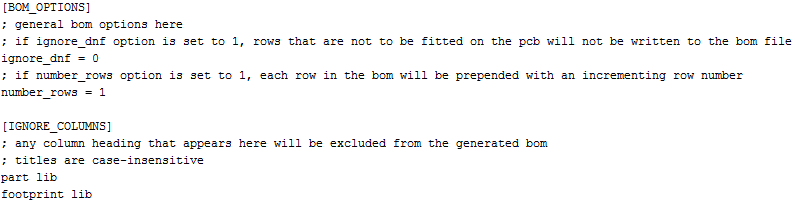
BoM generation options can be configured (on a per-project basis) by editing the .bom file in the PCB project directory. This file is generated the first time that the KiBoM script is run, and allows configuration of the following options.
- Number Rows: Add row numbers to the BoM output
- Ignore DNF: Component groups marked as 'DNF' (do not fit) will be excluded from the BoM output
- Ignore Columns: A list of columns can be marked as 'ignore', and will not be output to the BoM file. By default, the Part_Lib and Footprint_Lib columns are ignored.
Example configuration file (.ini format)
Example - HTML Output
A simple schematic is shown below. Here a number of resistors, capacitors, and one IC have been added to demonstrate the BoM output capability. Some of the components have custom fields added ('Vendor', 'Rating', 'Notes')
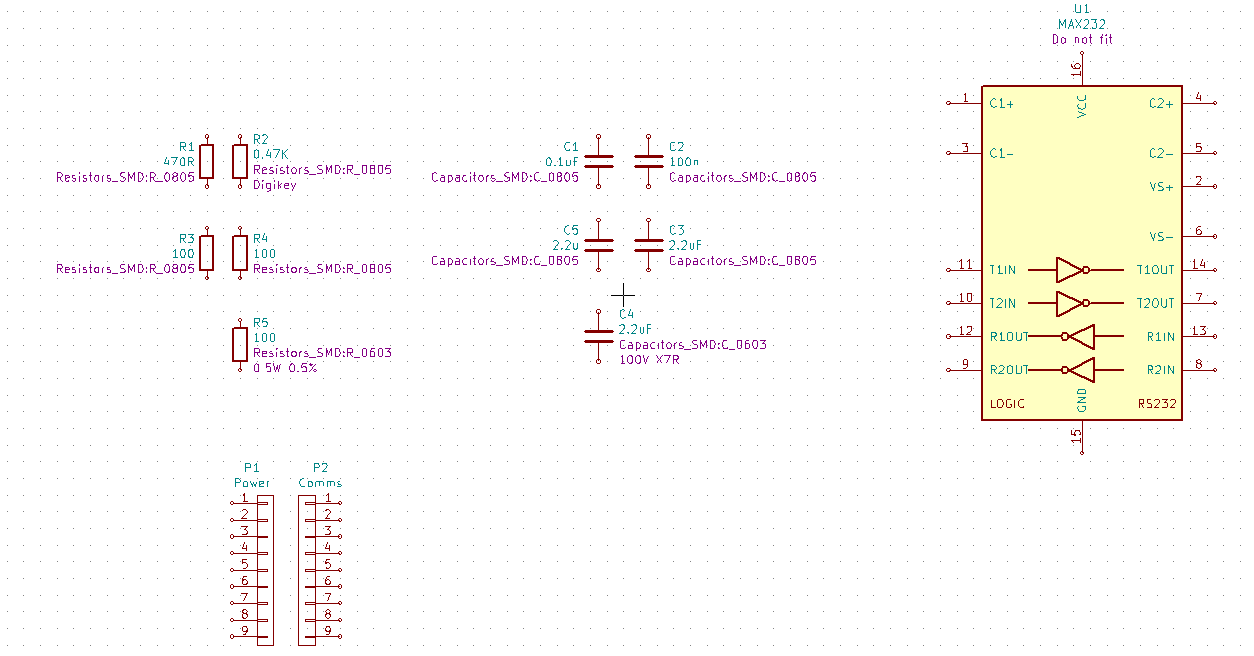
Here, a number of logical groups can be seen:
R1 R2 Resistors R1 and R2 have the same value (470 Ohm) even though the value is expressed differently. Resistors R1 and R2 have the same footprint
R3 R4 Resistors R3 and R4 have the same value and the same footprint
R5 While R5 has the same value as R3 and R4, it is in a different footprint and thus cannot be placed in the same group.
C1 C2 C1 and C2 have the same value and footprint
C3 C4 C3 and C4 have the same value and footprint
C5 C5 has a different footprint to C3 and C4, and thus is grouped separately
A HTML BoM file is generated as follows:

To add the BoM script, the Command Line options should be configured as follows:
- path-to-python-script (KiBOM_CLI.py)
- netlist-file "%I"
- output_path "%O_bom.html" (replace file extension for different output file formats)
Hit the "Generate" button, and the output window should show that the BoM generation was successful.
The output HTML file is generated as follows:
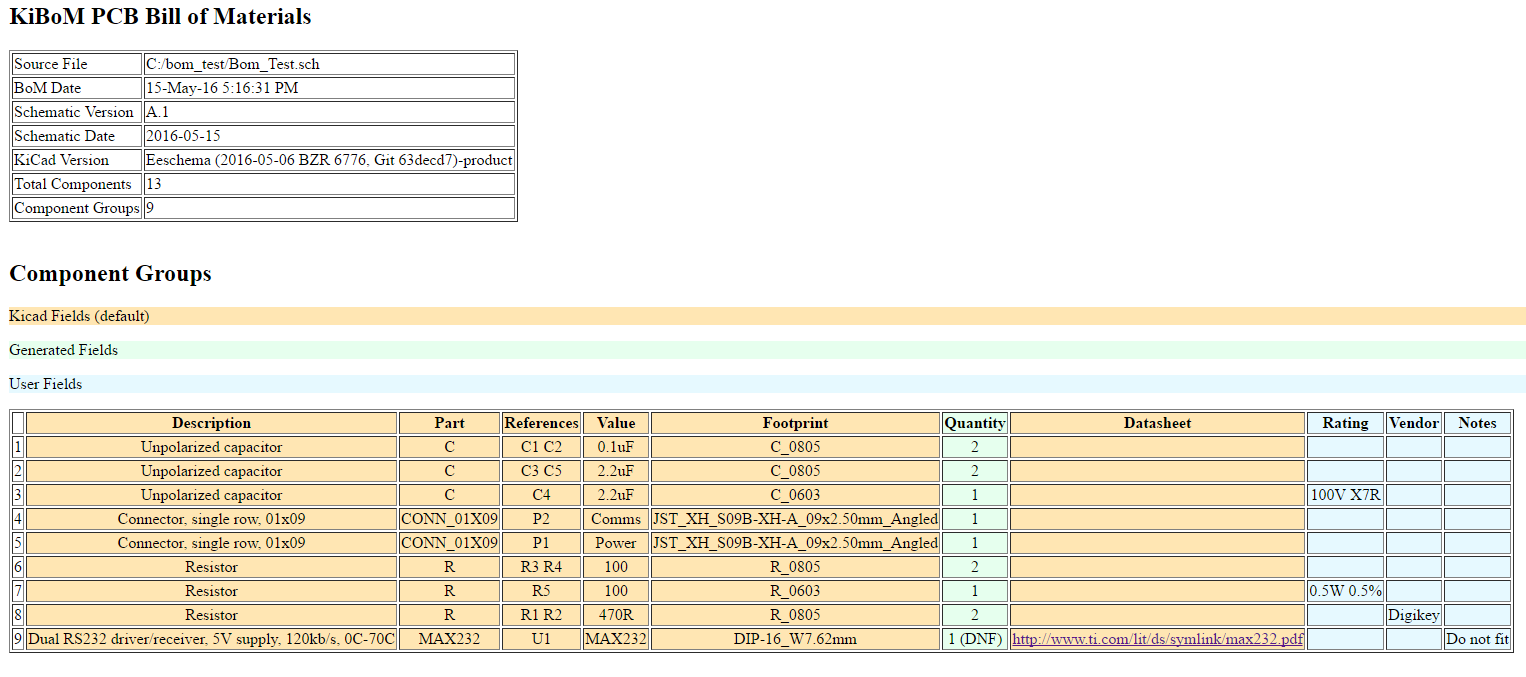
Here the components are correctly grouped, with links to datasheets where appropriate, and fields color-coded.